How to Set Up Cash on Delivery in WooCommerce (Pakistan Guide)
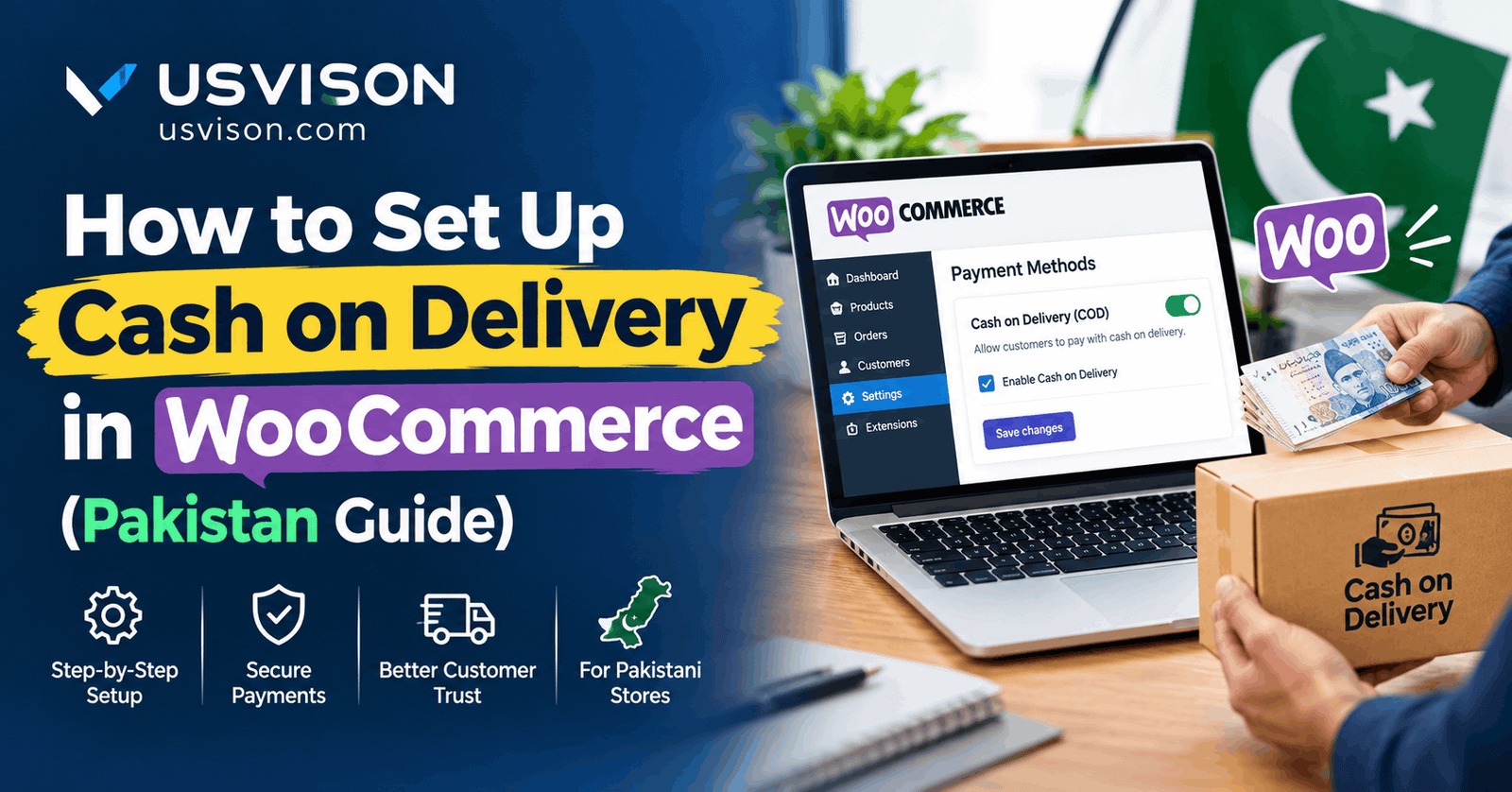
Many customers in Pakistan still prefer to pay when the parcel arrives. If you run a WooCommerce store, cash on delivery (COD) is already built in. Here is how to set it up, and how to protect yourself from fake orders.
Step 1: Turn on cash on delivery
In your WordPress dashboard, go to WooCommerce, then Settings, then Payments. Find "Cash on delivery" and switch it on. Open its settings and fill in four things: the title customers see at checkout, a short description, the instructions shown after the order is placed, and the shipping methods it should work with.
Keep the title simple, for example "Cash on delivery". In the instructions, tell customers what will happen next, such as "We will call or message you to confirm your order before dispatch."
Step 2: Set up shipping for Pakistan
Go to WooCommerce, then Settings, then Shipping. Add a shipping zone for Pakistan and choose how you charge: a flat rate, free shipping above a certain order value, or different rates for different cities. Then go back to the cash on delivery settings and make sure it is enabled for the shipping methods you just created.
Step 3: Test before you launch
Place a test order yourself as a customer. Check that the checkout shows cash on delivery, that you receive the order email, and that the customer sees the instructions on the thank you page.
Step 4: Reduce fake orders and returns
COD is popular, but it can also bring orders that are never collected. These habits help a lot.
Ask for a full address and a working phone number at checkout, and make both required.
Confirm every order by phone or WhatsApp before you dispatch it. A short message like "Please reply YES to confirm your order" removes many fake orders.
Set a minimum order value, so small orders do not cost you more in shipping than they earn.
For very expensive items, ask for a part payment in advance, or use another payment method.
Write a clear return and refund policy and show it on your store.
Step 5: Keep the checkout simple
Every extra box at checkout makes some customers leave. Ask only for what you need to deliver the order. If your store needs something more specific, such as special checkout fields, automatic order confirmation messages or a custom order flow, that can be built as a custom plugin.
Need a WooCommerce store, or help fixing the checkout on yours? Contact Usvison with a short description of your business and we will tell you how we can help.
← Back to journal